
WORKFLOW
MJ Trend Video
Create a character sheet
Not sure how to create an effective character sheet? Follow this tutorial:
Go to Higgsfield
Open Higgsfield using this link:
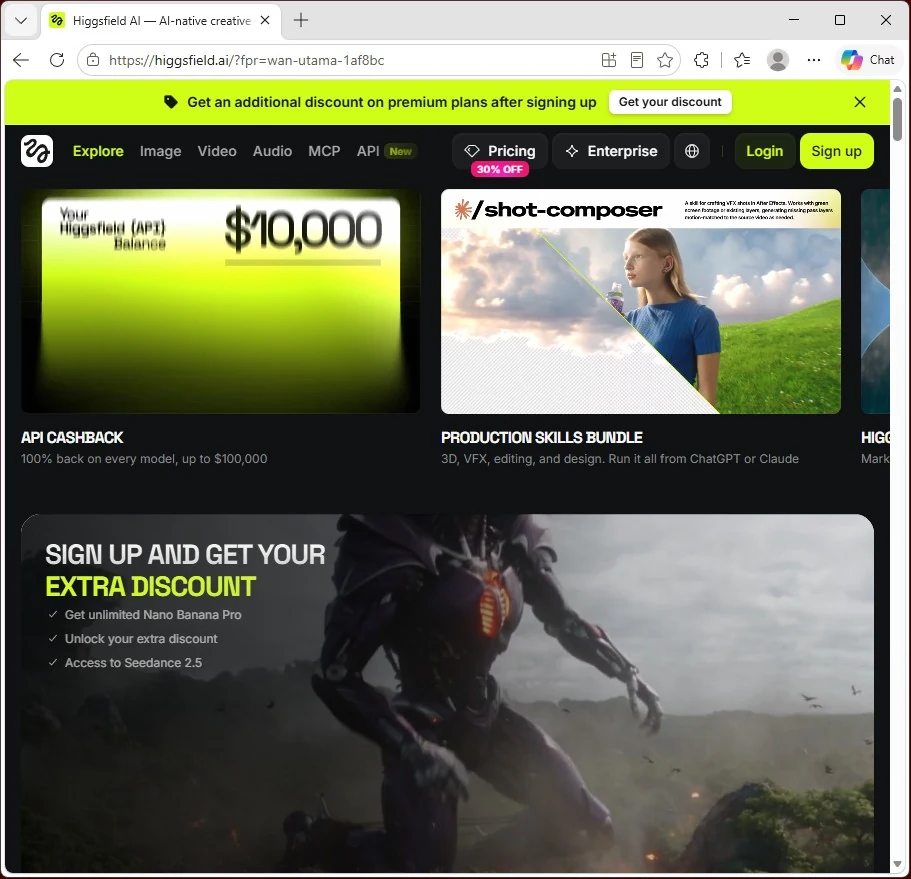
Open the Genjutsu tab
In Higgsfield, open the Genjutsu tab.
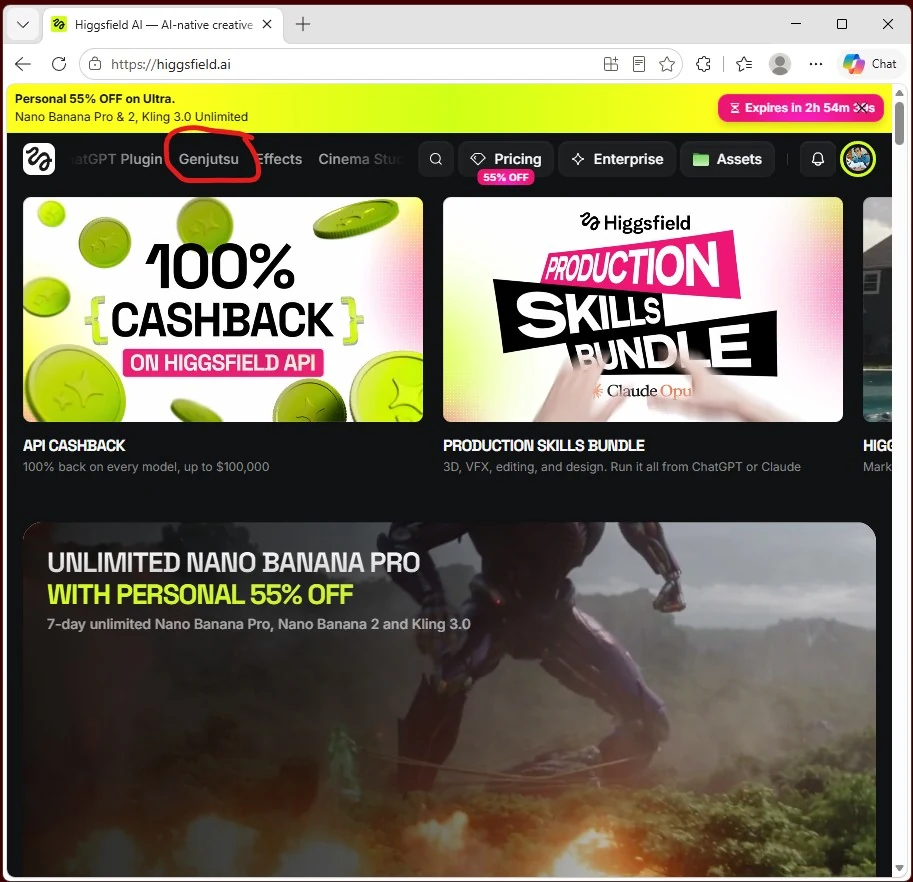
Open the reference project
Open my project using this link:
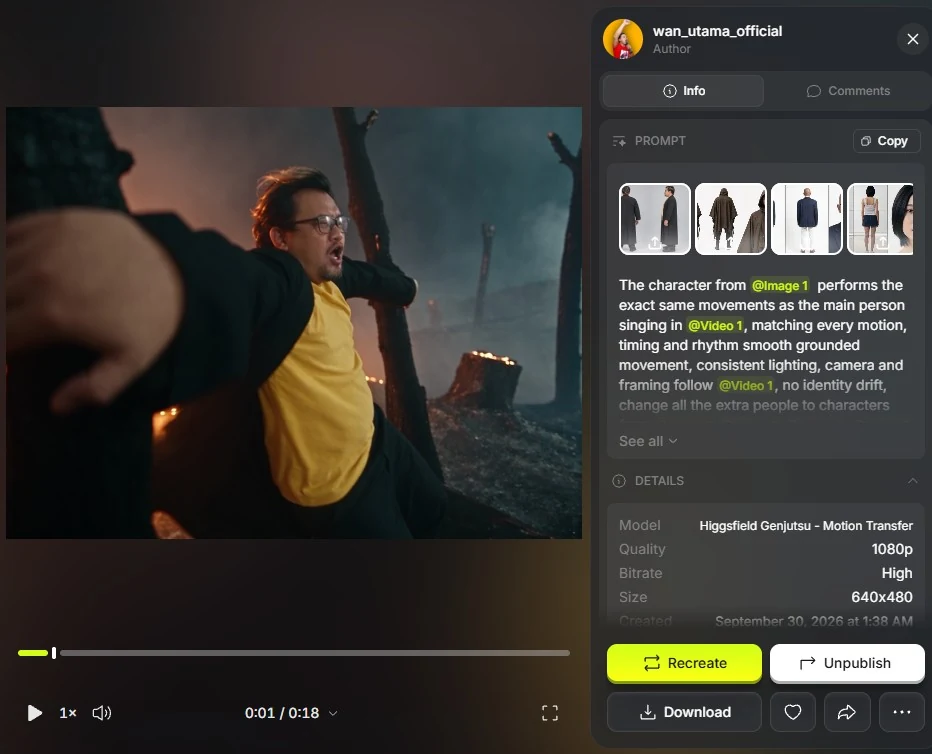
Select Recreate
Select the Recreate button on the project page.
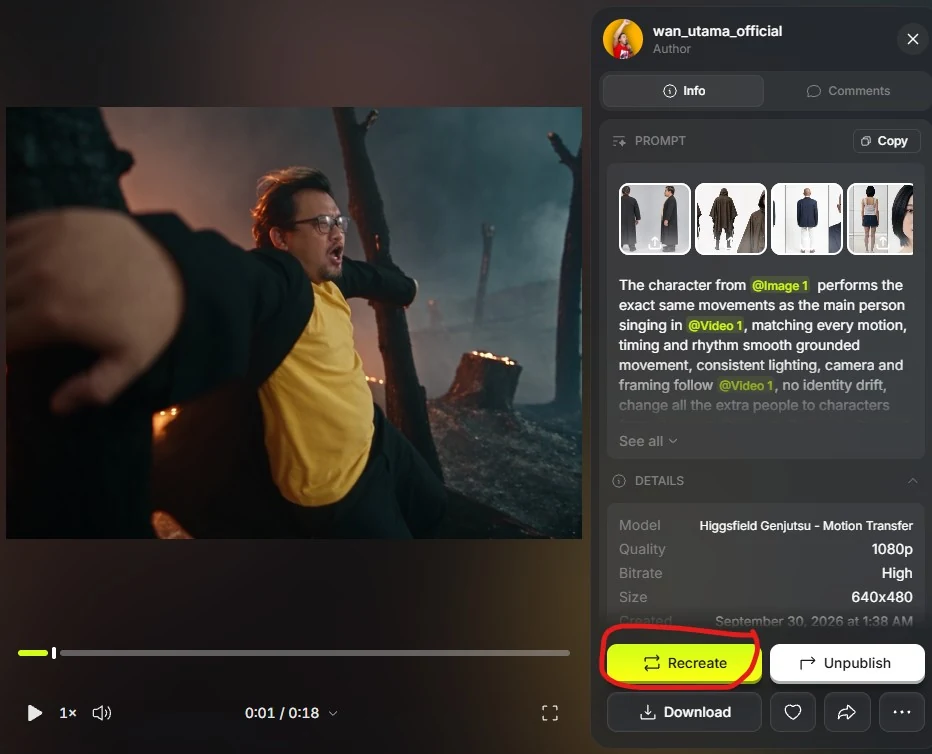
Keep Motion Transfer and the reference video
Make sure Motion Transfer is selected and keep the existing reference video.
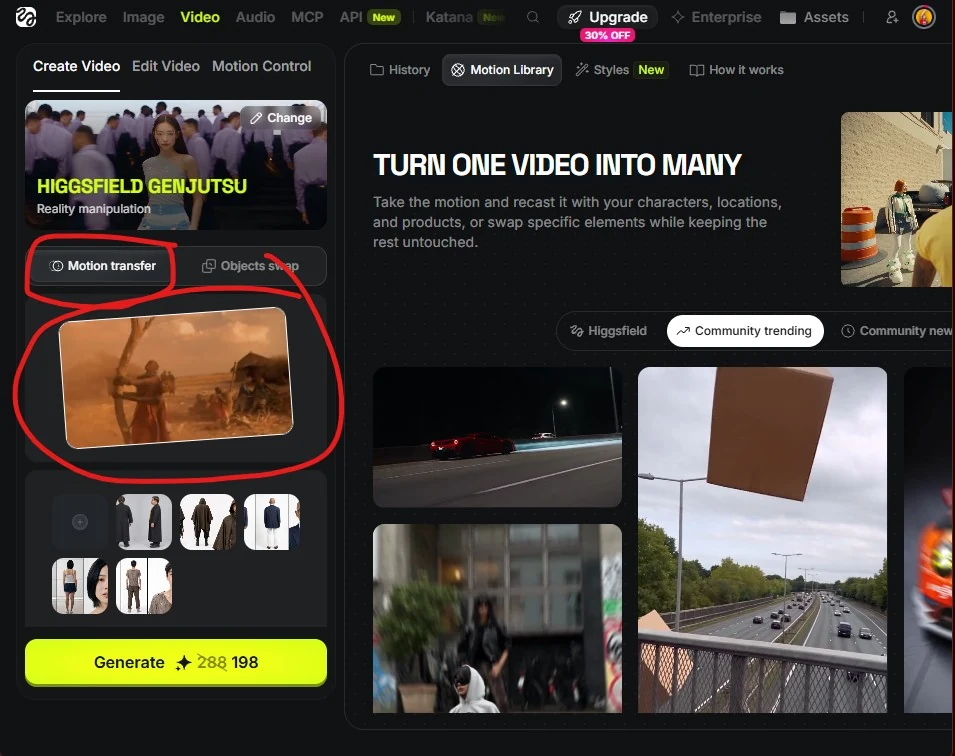
Replace the character references
Replace the reference images with images of the characters you want to use.
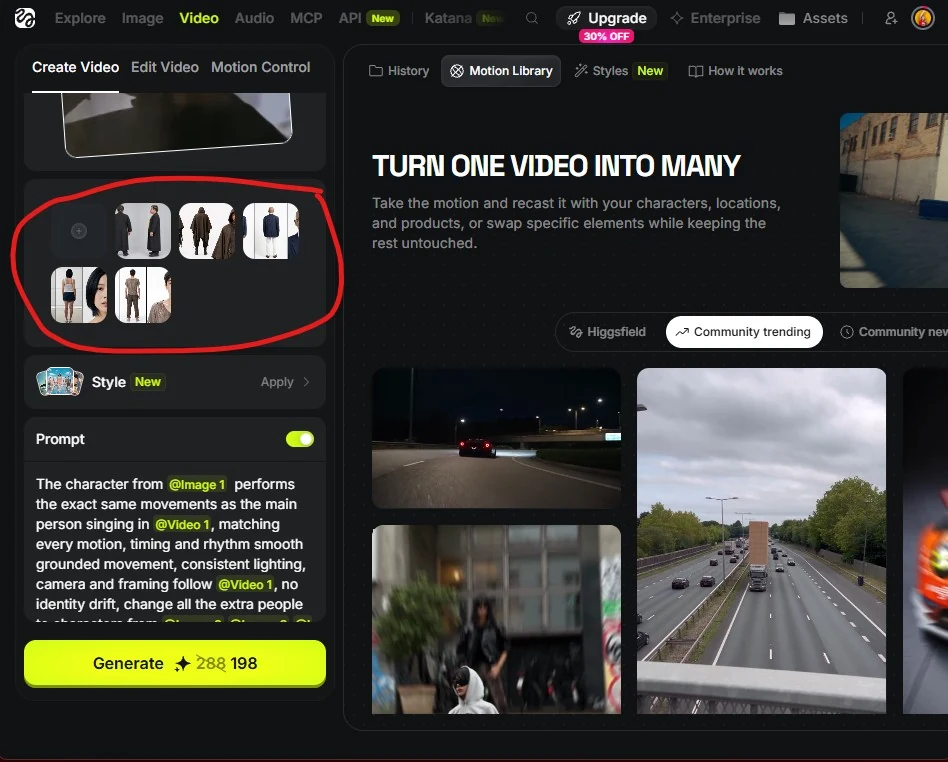
Adjust the prompt and reference tags
Adjust the prompt so its reference tags match the images you have uploaded. Check that every image tag and the video tag point to the correct assets.
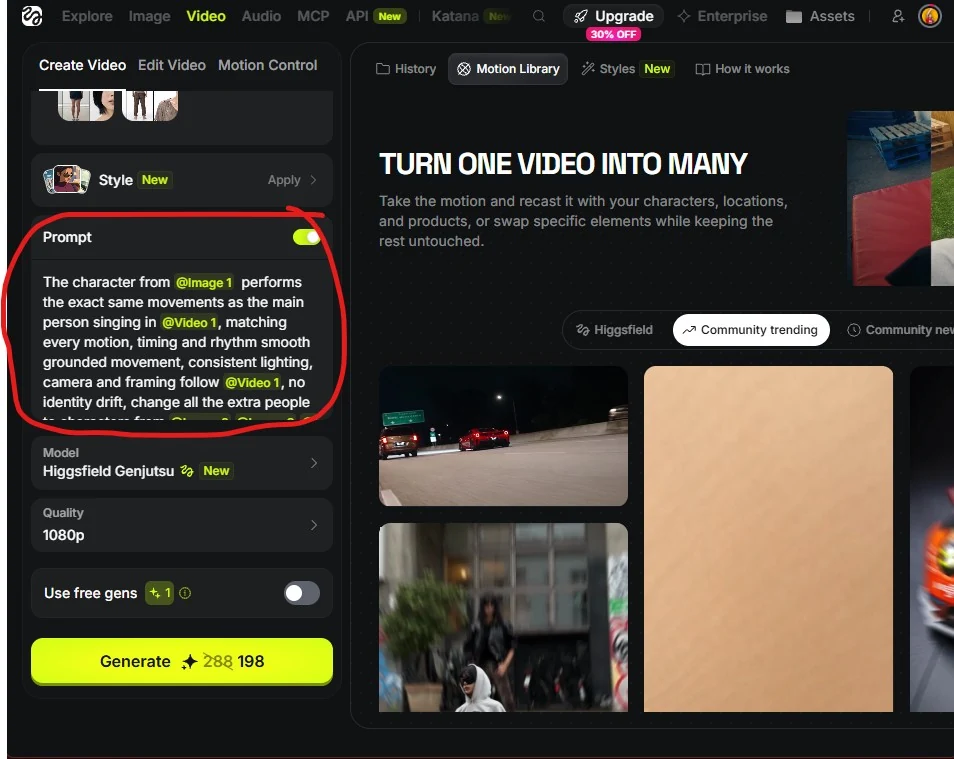
Prompt I use
The character from @[Image 1] performs the exact same movements as the main person singing in @[Video 1], matching every motion, timing and rhythm smooth grounded movement, consistent lighting, camera and framing follow @[Video 1], no identity drift, change all the extra people to characters from @[Image 2] @[Image 3] @[Image 3] @[Image 5]

IMPORTANT NEGATIVE INSTRUCTIONS:
Do not change the person's identity.
Do not generate a different face.
Do not make the face more handsome or more stylized.Choose the quality and generate
Choose 1080p for the best visuals, or 720p to use fewer credits. I do not recommend 480p. Then select Generate!
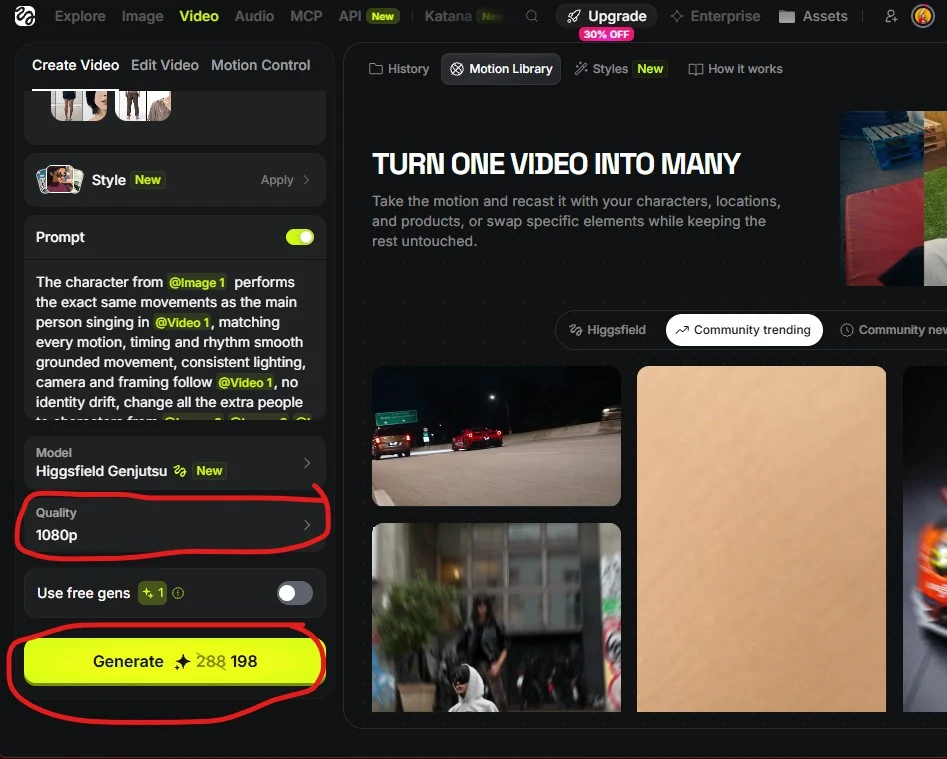
Important note
This video includes many additional characters, and the source reference video is relatively low resolution. Some parts did not turn out well on the first generation.
I generated the video several times, then edited together the sections I was happy with.
I generated a total of six versions. The final video I posted on Instagram is an edited result, not a complete output from a single generation.
I edited it in CapCut. You can use any editing software you are comfortable with.